> ## Documentation Index
> Fetch the complete documentation index at: https://docs.loops.fi/llms.txt
> Use this file to discover all available pages before exploring further.
# Top of Funnel
> Connect your ad platforms to see which campaigns drive the most revenue
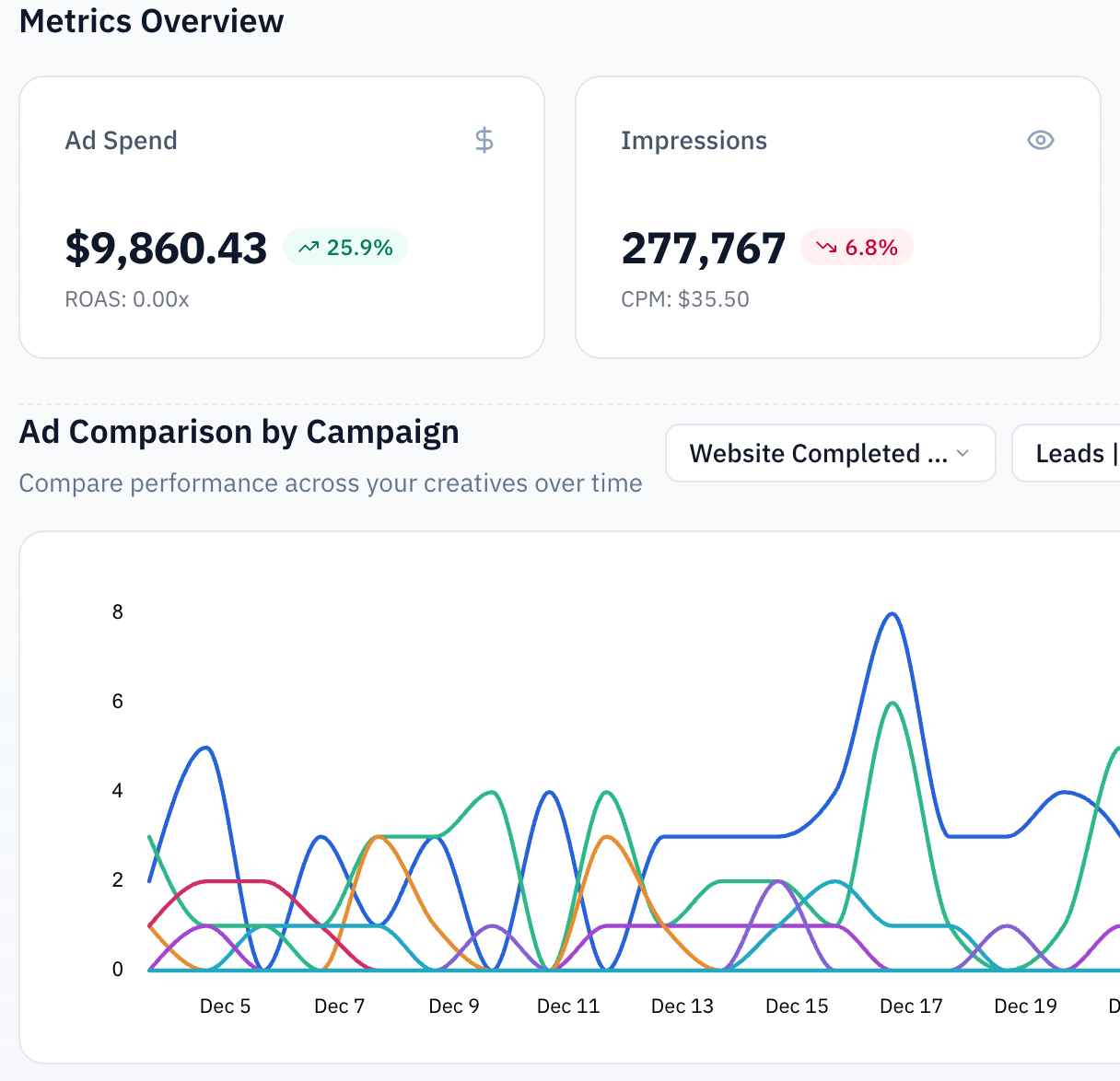
Connect your top of funnel data to Loops to get insights into what ads are driving the most revenue.
## Google Ads
Connecting to your Google Ads account requires you to sign in with your Google account and to give Loops read access to your Ads account.
### Step 1: Connect Your Google Ads Account to Loops
To connect, go through the OAuth flow with an account that has Standard or Admin access.
You will need to approve the `https://www.googleapis.com/auth/adwords` scope so Loops can read your campaign data.
### Step 2: View Your Google Ads Data
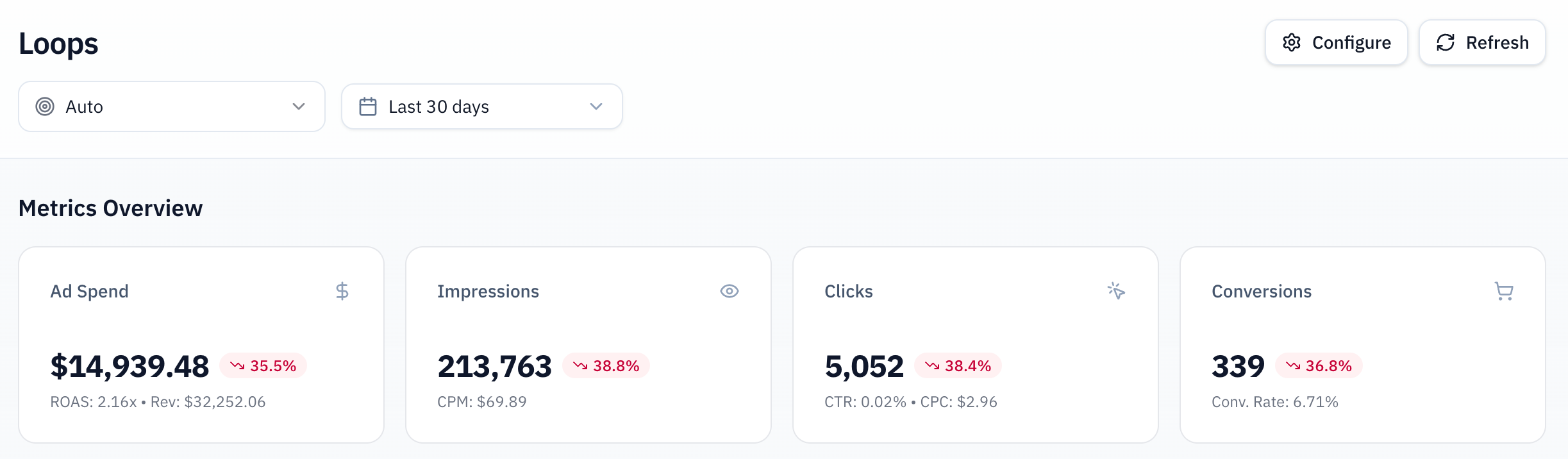
You can view your ad performance in concordance with the rest of your marketing data on the Loops page.
 ## Meta Ads
Some manual setup is required to connect your Meta Ads account to Loops.
### Prerequisites
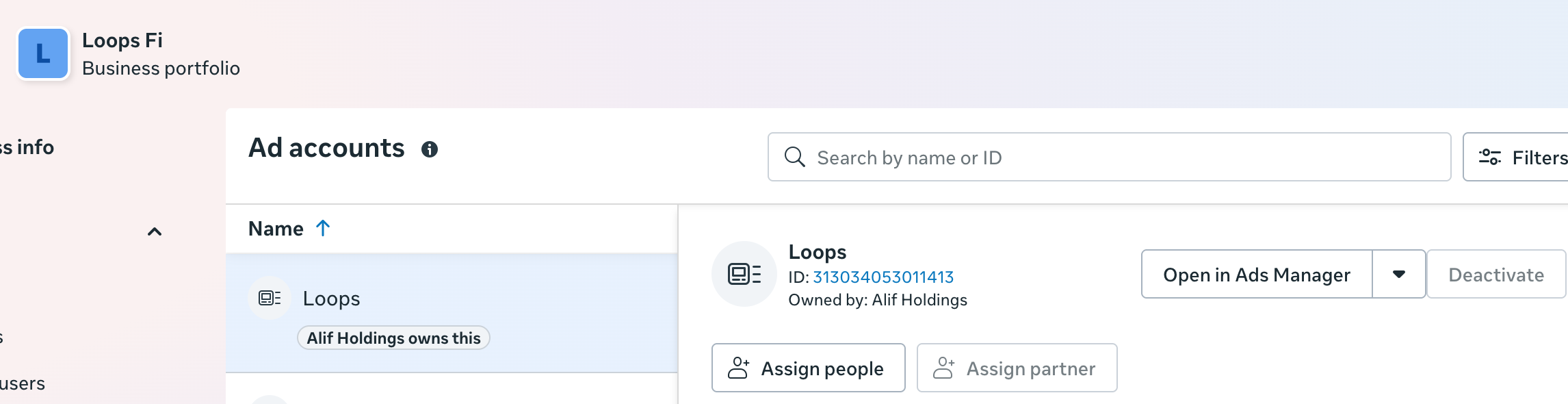
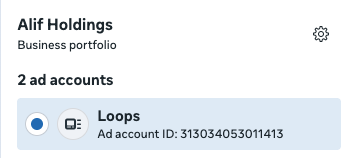
Send us your Meta Ads account ID and accept Loops' request to become a partner to your account. This allows us to fetch your campaign performance.
You can find your account ID:
In your Meta Business Portfolio, under ads accounts:
## Meta Ads
Some manual setup is required to connect your Meta Ads account to Loops.
### Prerequisites
Send us your Meta Ads account ID and accept Loops' request to become a partner to your account. This allows us to fetch your campaign performance.
You can find your account ID:
In your Meta Business Portfolio, under ads accounts:
 Or, in your Meta Ads account, in the account selector:
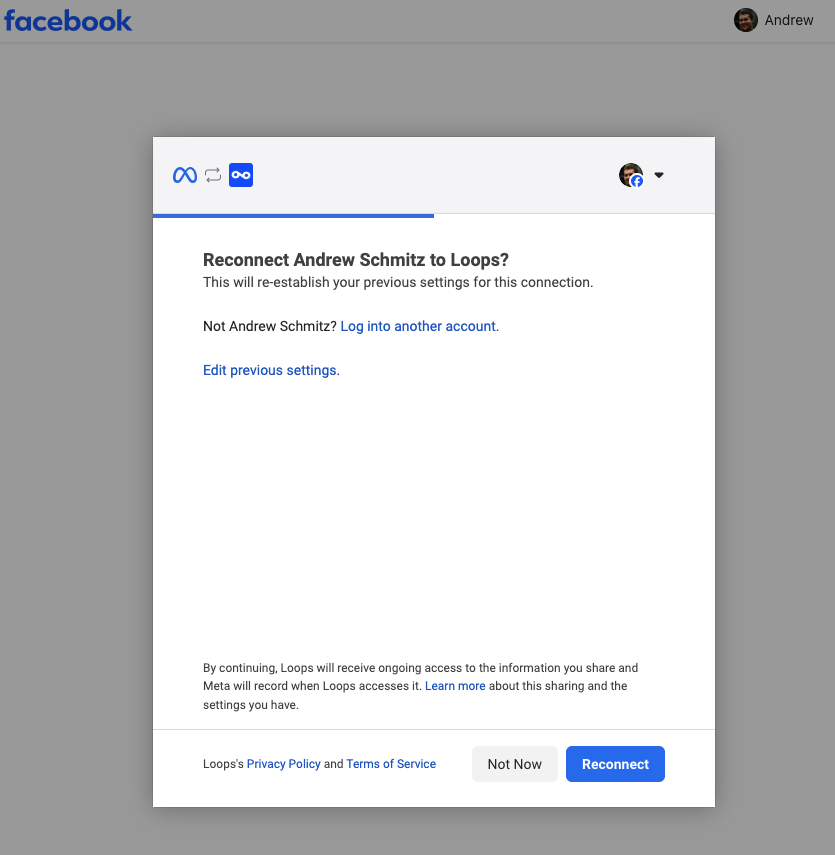
 ### Step 1: Connect Your Meta Ads Account to Loops
1. Go to the Integrations page in your Loops dashboard.
2. Click on the **Connect Account** button.
Make sure you are signed in as an Admin or Advertiser to the Meta account you wish to connect.
### Step 1: Connect Your Meta Ads Account to Loops
1. Go to the Integrations page in your Loops dashboard.
2. Click on the **Connect Account** button.
Make sure you are signed in as an Admin or Advertiser to the Meta account you wish to connect.
 ### Step 2: Sync Your Meta Ads Data
Now you can sync your Meta Ads data to the Dashboard. If you have a very large campaign, this might take a while.
You can change how much data is synced by using the date range filter.
### Step 3: View Your Meta Ads Data
Once synced, you can view your campaign performance in the graph and table.
### Step 2: Sync Your Meta Ads Data
Now you can sync your Meta Ads data to the Dashboard. If you have a very large campaign, this might take a while.
You can change how much data is synced by using the date range filter.
### Step 3: View Your Meta Ads Data
Once synced, you can view your campaign performance in the graph and table.