> ## Documentation Index
> Fetch the complete documentation index at: https://docs.loops.fi/llms.txt
> Use this file to discover all available pages before exploring further.
# Conversion Tracking
> Track payment and booking conversions to attribute revenue to your marketing
Loops can track conversion events from multiple sources, which helps you attribute revenue and improve marketing effectiveness.
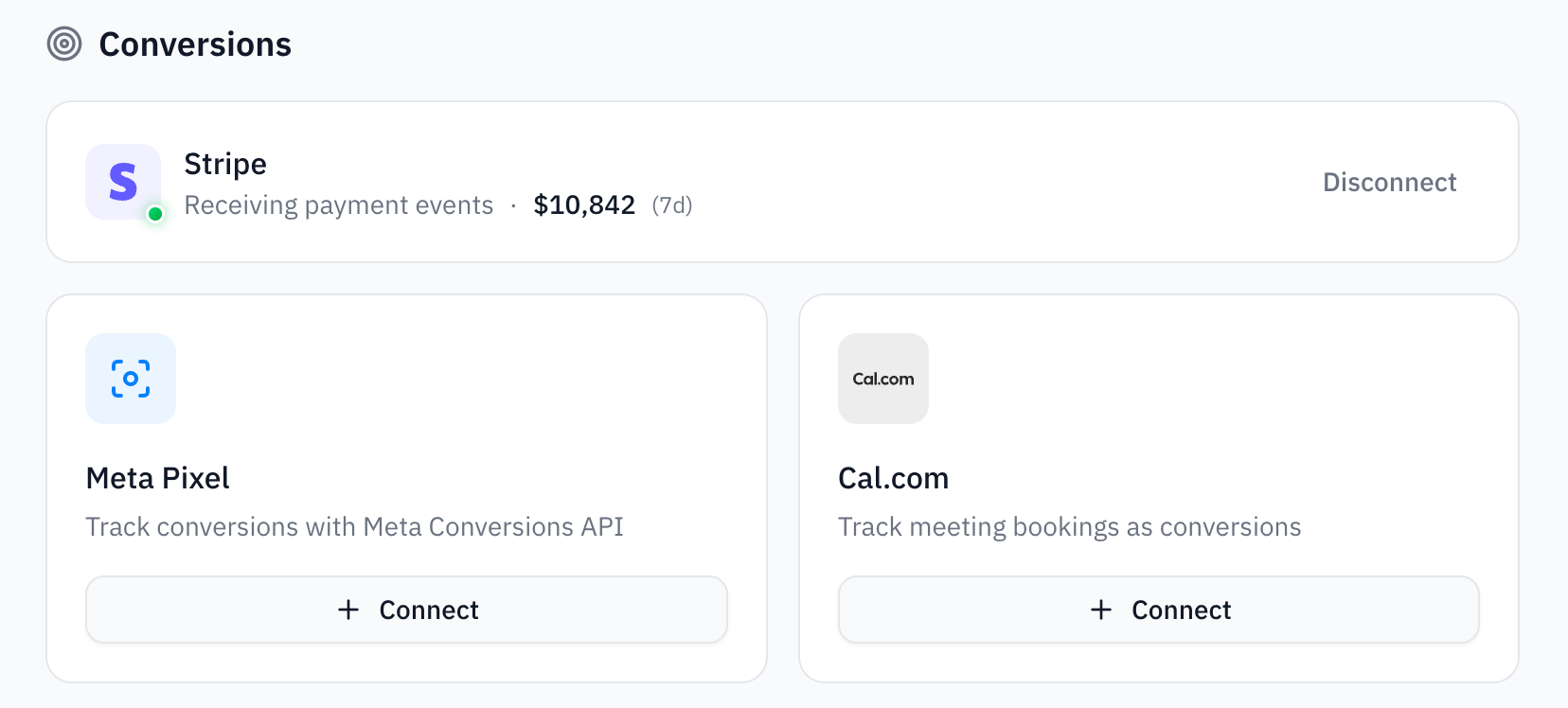 ## Stripe (Payment Conversions)
Connect your Stripe account to automatically track payments as conversions. This enables you to see which ads and marketing channels are driving actual revenue.
### What Gets Tracked
Once connected, Loops automatically captures these Stripe events:
* **checkout\_completed** - Checkout session completions
* **payment\_completed** - Successful payments
* **subscription\_created** - New subscriptions
* **subscription\_updated** - Plan upgrades and renewals
* **invoice\_paid** - Paid invoices
* **charge\_succeeded** - Successful charges
Each event includes revenue data, allowing you to calculate ROI across your marketing channels and identify which campaigns are driving the highest LTV customers.
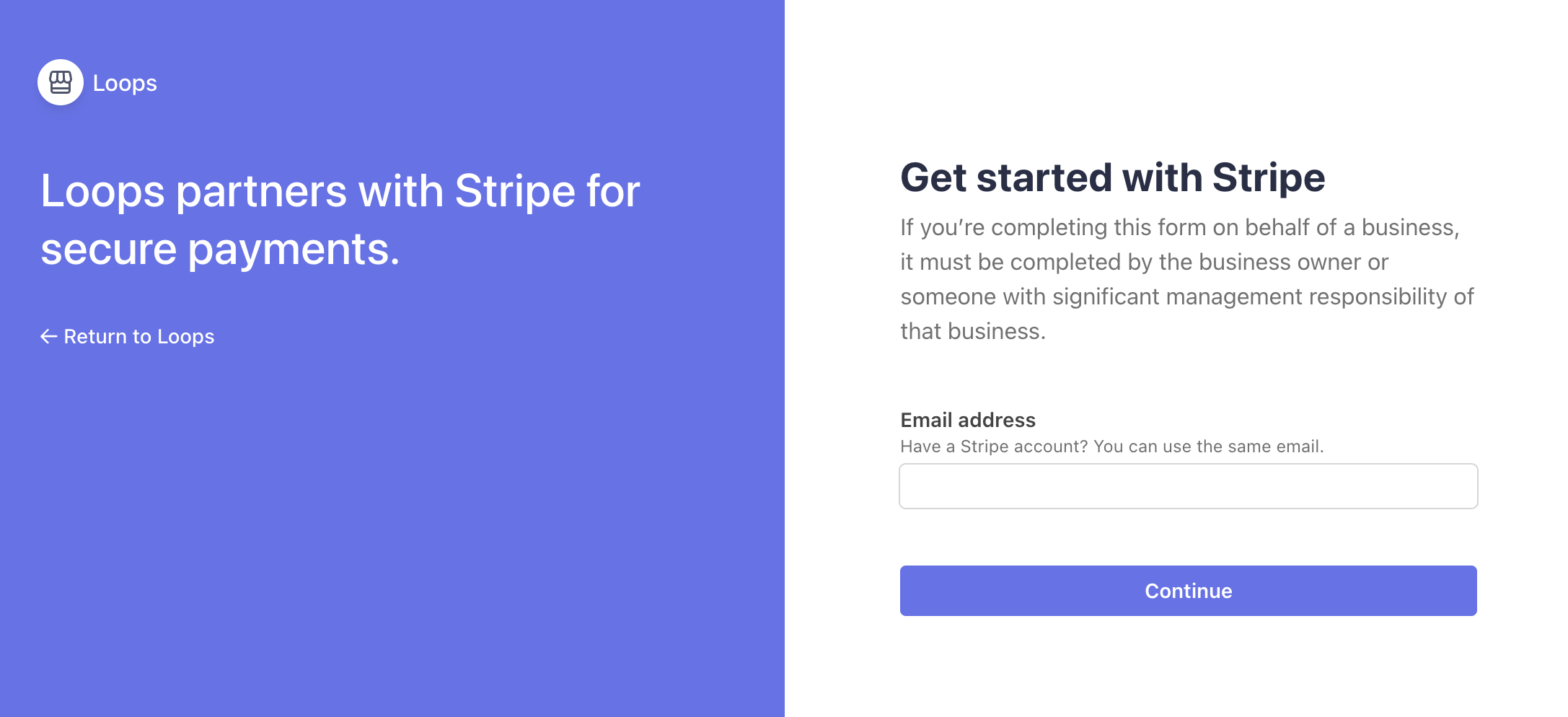
### Step 1: Connect Your Stripe Account
Use the OAuth flow on the Integrations page in the dashboard.
## Stripe (Payment Conversions)
Connect your Stripe account to automatically track payments as conversions. This enables you to see which ads and marketing channels are driving actual revenue.
### What Gets Tracked
Once connected, Loops automatically captures these Stripe events:
* **checkout\_completed** - Checkout session completions
* **payment\_completed** - Successful payments
* **subscription\_created** - New subscriptions
* **subscription\_updated** - Plan upgrades and renewals
* **invoice\_paid** - Paid invoices
* **charge\_succeeded** - Successful charges
Each event includes revenue data, allowing you to calculate ROI across your marketing channels and identify which campaigns are driving the highest LTV customers.
### Step 1: Connect Your Stripe Account
Use the OAuth flow on the Integrations page in the dashboard.
 ### Step 2: Verify Connection
Once connected, you'll see Stripe's status change to "Receiving payment events" with your recent revenue displayed.
Loops automatically syncs this data to the dashboard, so you can view your revenue attribution in the dashboard.
## Meta Pixel (Conversions API)
The Meta Pixel integration sends server-side conversion events to Meta's Conversions API (CAPI). This improves ad attribution accuracy, especially for iOS users affected by App Tracking Transparency.
### What Gets Tracked
When Stripe events occur, Loops automatically forwards them to Meta CAPI:
| Stripe Event | Meta Event |
| ------------------------------- | --------------------- |
| `checkout.session.completed` | Purchase |
| `customer.subscription.created` | Subscribe |
| `invoice.paid` | Purchase |
| `invoice.payment_failed` | PaymentFailed |
| `customer.subscription.deleted` | SubscriptionCancelled |
### Prerequisites
Before connecting Meta Pixel, you'll need:
* A Meta Pixel ID (15-17 digits)
* A Conversions API access token
### Step 1: Get Your Meta Pixel Credentials
1. Go to [Meta Events Manager](https://business.facebook.com/events_manager2)
2. Select your pixel and go to **Settings**
3. Copy the **Pixel ID** (15-17 digits)
4. Scroll to the **Conversions API** section
5. Click **Generate access token** and copy it
### Step 2: Connect Meta Pixel in Loops
1. Go to the **Integrations** page
2. Find **Meta Pixel** in the Conversions section
3. Click **Connect** and enter:
* A friendly name (e.g., "Website Pixel")
* Your Pixel ID
* Your Conversions API access token
### Step 3: Enhance Attribution with Customer Metadata
For better attribution matching, include Meta tracking data when creating Stripe customers. Loops will automatically forward this data to Meta CAPI.
**Collect Facebook cookies on your frontend:**
```javascript theme={null}
function getCookie(name) {
const value = `; ${document.cookie}`;
const parts = value.split(`; ${name}=`);
if (parts.length === 2) {
return parts.pop().split(';').shift();
}
}
// Get Meta tracking cookies
const fbc = getCookie('_fbc') || null;
const fbp = getCookie('_fbp') || null;
```
**Include tracking data in Stripe customer metadata:**
```javascript theme={null}
const customer = await stripe.customers.create({
email: customerEmail,
metadata: {
client_ip: req.ip || req.headers['x-forwarded-for'],
client_user_agent: req.headers['user-agent'],
fbc: fbc || '',
fbp: fbp || '',
}
});
```
This metadata enables Meta to match conversions back to the original ad clicks.
## Cal.com (Booking Conversions)
Track Cal.com meeting bookings as conversion events. This is useful for B2B companies where a booked demo or sales call is a key conversion.
### What Gets Tracked
* **booking\_created** - When a meeting is booked
* **booking\_cancelled** - When a booking is cancelled
Each booking includes details like attendee email, event type, and scheduling information.
### Step 1: Connect Cal.com in Loops
1. Go to the **Integrations** page
2. Find **Cal.com** in the Conversions section
3. Click **Connect** and enter a name for this integration
4. Copy the generated **webhook secret** — you'll need this next
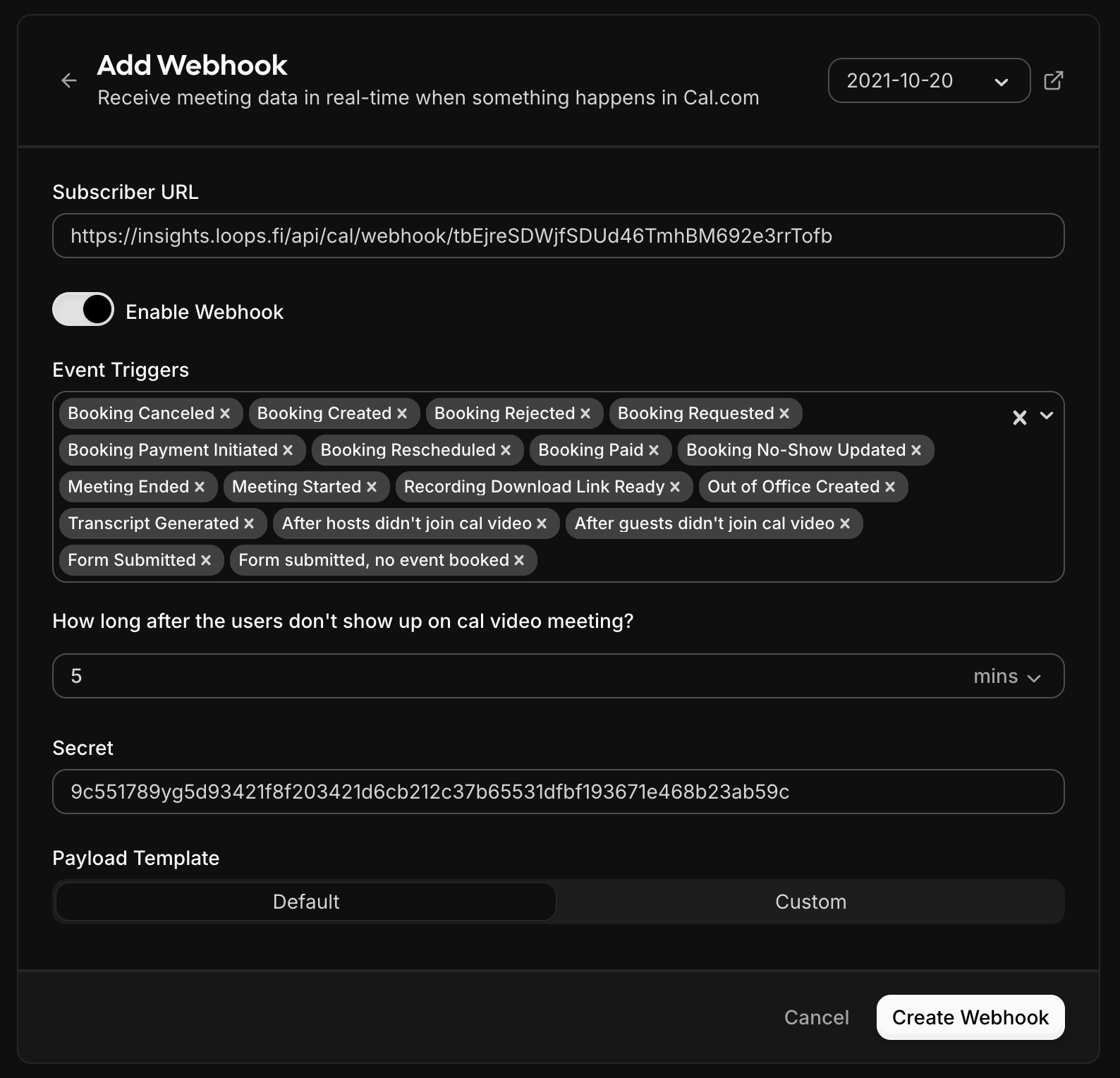
### Step 2: Configure the Webhook in Cal.com
1. Go to your [Cal.com Settings → Webhooks](https://app.cal.com/settings/developer/webhooks)
2. Click **New Webhook**
3. Configure the webhook:
* **Subscriber URL**: Paste the webhook URL shown in Loops
* **Secret**: Paste the webhook secret you copied
* **Event Triggers**: Select `BOOKING_CREATED` and `BOOKING_CANCELLED`, or just leave all selected
4. Save the webhook
### Step 2: Verify Connection
Once connected, you'll see Stripe's status change to "Receiving payment events" with your recent revenue displayed.
Loops automatically syncs this data to the dashboard, so you can view your revenue attribution in the dashboard.
## Meta Pixel (Conversions API)
The Meta Pixel integration sends server-side conversion events to Meta's Conversions API (CAPI). This improves ad attribution accuracy, especially for iOS users affected by App Tracking Transparency.
### What Gets Tracked
When Stripe events occur, Loops automatically forwards them to Meta CAPI:
| Stripe Event | Meta Event |
| ------------------------------- | --------------------- |
| `checkout.session.completed` | Purchase |
| `customer.subscription.created` | Subscribe |
| `invoice.paid` | Purchase |
| `invoice.payment_failed` | PaymentFailed |
| `customer.subscription.deleted` | SubscriptionCancelled |
### Prerequisites
Before connecting Meta Pixel, you'll need:
* A Meta Pixel ID (15-17 digits)
* A Conversions API access token
### Step 1: Get Your Meta Pixel Credentials
1. Go to [Meta Events Manager](https://business.facebook.com/events_manager2)
2. Select your pixel and go to **Settings**
3. Copy the **Pixel ID** (15-17 digits)
4. Scroll to the **Conversions API** section
5. Click **Generate access token** and copy it
### Step 2: Connect Meta Pixel in Loops
1. Go to the **Integrations** page
2. Find **Meta Pixel** in the Conversions section
3. Click **Connect** and enter:
* A friendly name (e.g., "Website Pixel")
* Your Pixel ID
* Your Conversions API access token
### Step 3: Enhance Attribution with Customer Metadata
For better attribution matching, include Meta tracking data when creating Stripe customers. Loops will automatically forward this data to Meta CAPI.
**Collect Facebook cookies on your frontend:**
```javascript theme={null}
function getCookie(name) {
const value = `; ${document.cookie}`;
const parts = value.split(`; ${name}=`);
if (parts.length === 2) {
return parts.pop().split(';').shift();
}
}
// Get Meta tracking cookies
const fbc = getCookie('_fbc') || null;
const fbp = getCookie('_fbp') || null;
```
**Include tracking data in Stripe customer metadata:**
```javascript theme={null}
const customer = await stripe.customers.create({
email: customerEmail,
metadata: {
client_ip: req.ip || req.headers['x-forwarded-for'],
client_user_agent: req.headers['user-agent'],
fbc: fbc || '',
fbp: fbp || '',
}
});
```
This metadata enables Meta to match conversions back to the original ad clicks.
## Cal.com (Booking Conversions)
Track Cal.com meeting bookings as conversion events. This is useful for B2B companies where a booked demo or sales call is a key conversion.
### What Gets Tracked
* **booking\_created** - When a meeting is booked
* **booking\_cancelled** - When a booking is cancelled
Each booking includes details like attendee email, event type, and scheduling information.
### Step 1: Connect Cal.com in Loops
1. Go to the **Integrations** page
2. Find **Cal.com** in the Conversions section
3. Click **Connect** and enter a name for this integration
4. Copy the generated **webhook secret** — you'll need this next
### Step 2: Configure the Webhook in Cal.com
1. Go to your [Cal.com Settings → Webhooks](https://app.cal.com/settings/developer/webhooks)
2. Click **New Webhook**
3. Configure the webhook:
* **Subscriber URL**: Paste the webhook URL shown in Loops
* **Secret**: Paste the webhook secret you copied
* **Event Triggers**: Select `BOOKING_CREATED` and `BOOKING_CANCELLED`, or just leave all selected
4. Save the webhook
 ### Step 3: Enable Attribution (Optional)
To link bookings back to website visitors, Loops can assign users an anonymous ID to be tracked across the conversion event.
Please contact us at [support@loops.fi](mailto:support@loops.fi) to set this up.
### Step 3: Enable Attribution (Optional)
To link bookings back to website visitors, Loops can assign users an anonymous ID to be tracked across the conversion event.
Please contact us at [support@loops.fi](mailto:support@loops.fi) to set this up.